Course Setup
Buz F&B POS supports adding items to an order by course (cocktails, appetizers, entrees etc.)
Course Setup
Coursing is used in a fine dining environment. Some Food and Beverage establishments use coursing to prepare the meals.
In order to setup coursing you must first create your coursing options.
Launch the Course Setup application from the POS Settings application group
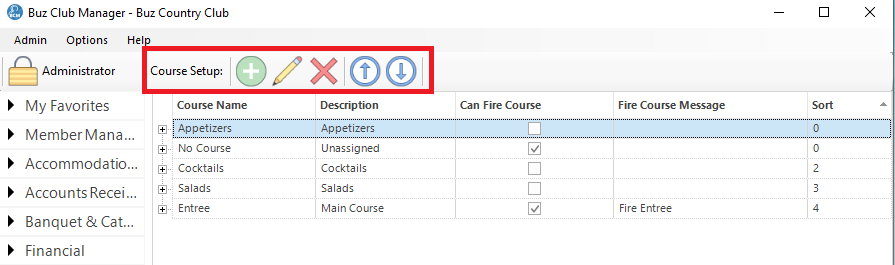
Tool Bar
The Tool Bar has the following options:
- Add Course
- Edit Course
- Delete Course
- Move Course Up
- Move Course Down
Add a Course
To add a course, select the Add Course button on the Tool Bar.
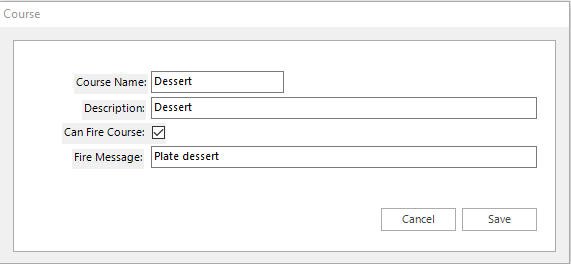
Complete the form and check off 'Can Fire Course' for courses that need to be Fired to the kitchen from the POS screen. The fire message will be sent to the kitchen prep printer.
Edit / Delete Course
To edit or delete a course, click on the course int he course lists and select the applicable button for the Tool Bar.
Course Order
The order in which the courses will be added to the POS order form and sent to the prep printers in the kitchen is determined by the sort value in the right hand column or the course list. You can sequence the courses by using the Move Up and Move Down buttons on the Tool Bar.
Enabling Courses at POS
Step 1: Assign Curses to Inventory Categories
Once you have created you courses you then must apply them to the applicable Inventory Categories.
Step 2: Turn on 'Use Courses when Firing Orders'
Each POS profile can be configured to use coursing. To enable coursing for profile check off  when configuring the profile.