Printer Types
Printer Types
There are typically three general categories of printers used at a club. They are prep printers, receipt printers for retail and F&B and report printers. The Printer Types application enables the cub to define specific generic printer types. This is particularly import for prep printers as clubs may have numerous prep printer types such as HOT. COLD, EXPEDITER, SALAD etc.
There are typically three general categories of printers used at a club. They are prep printers, receipt printers for retail and F&B and report printers. The Printer Types application enables the cub to define specific generic printer types. This is particularly import for prep printers as clubs may have numerous prep printer types such as HOT. COLD, EXPEDITER, SALAD etc.
To launch the Printer Types application, select it from the POS Settings group.
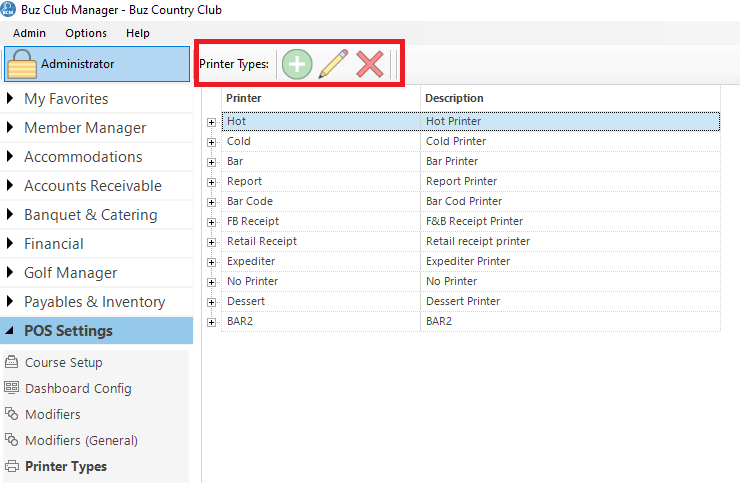
Tool Bar
The Tool Bar has options for:
- Add
- Edit
- Delete
Add Printer Type
To add a printer type, click on the Add button on the Tool Bar. complete the name and description of the printer and then click Save.
Edit Printer Type
To edit a printer type, click on the Edit button on the Tool Bar. change the name and/or description of the printer and then click Save.
Delete a Printer Type
To delete a printer type, click on the Delete button on the Tool Bar and follow the prompts.
Caution: Use the delete function with extreme caution as the printer will be removed from any assignments in the Inventory Manager and Station Settings.