Member List
Launch the Member List Setup by right-mouse-clicking anywhere in the Member List, then click Setup.
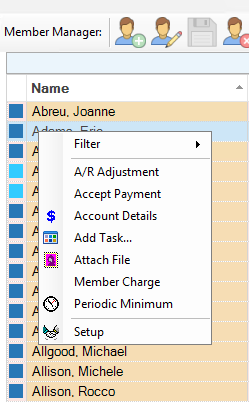
The Member List Setup has four tabs: Appearance, Filtering, Add-Ins, and Columns.
Appearance
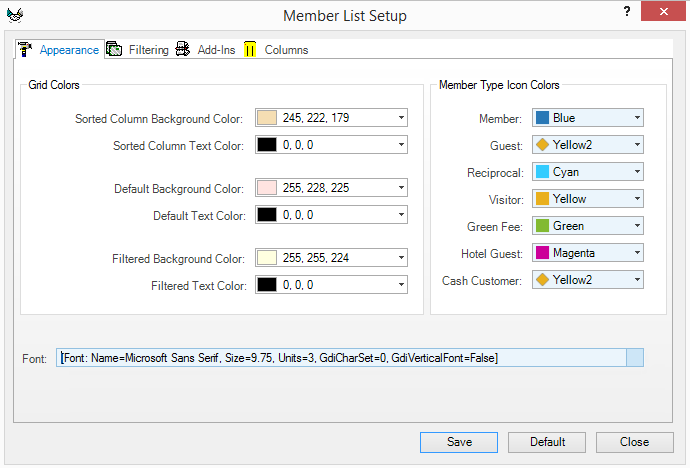
Grid colors will change based on the color scheme selected for the default, or when the list is sorted by clicking on the column header, or when the list is filtered. The intent is to provide a clear indication to the user of the current status of the list.
Each member will have a colored icon beside their name. The color of the icon represents the Member Type (Member, Guest, Reciprocal, Visitor, Green Fee, Hotel Guest or Cash Customer). Select colors for each Member Type to suit your preference.
Filtering
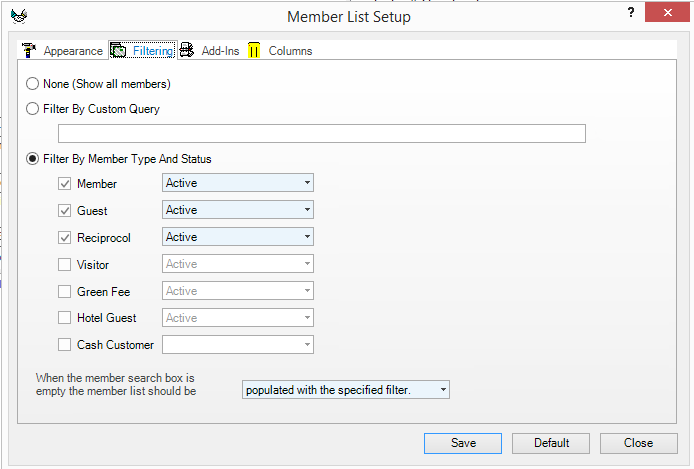
There are three options for setting the Default Filter:
- None: Will return a list of all records in the database. This may be undesirable, because it will display every record in the database, including deleted members, etc.
- Custom Query: May be useful if the Filter by Member Type And Status does not fulfill your needs. Queries are set-up in the Query Manager.
- Filter by Member List And Status: Most likely the best option, as you will likely want to view only Active members.
Add-Ins
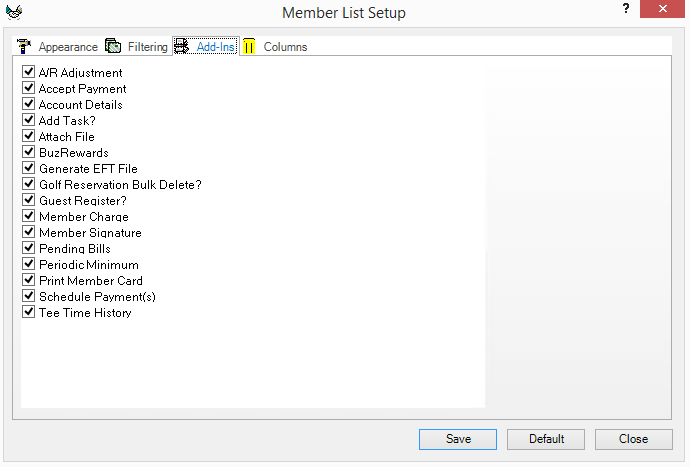
You may select as many features as you require to appear in the Member Administration tools using the Add-Ins tab.
Add-Ins are invoked from the Member Manager by right-mouse-clicking on the member's name. A detailed description of each Add-In will be provided in the section of the documentation dealing with day to day use of the Member Manager.
Recommended default Add-Ins are:
- A/R Adjustment
- Accept Payment
- Account Details
- Add a Task
- Attach File
- Member Charge
- Periodic Minimum (if your club uses minimums)
Columns
You may edit the sizes of your columns in the Member Manager using the Columns tab of the Member List Setup and also determine which columns are visible. You can also set the column widths in the Member Manager by dragging the splitter of the column to the desired width. Then, from the Member List Set Up on the columns tab, select Use Current and then Save. You can change a column's visibility setting by selecting the column, clicking Edit, then check or uncheck Visible, and then Save.