Purchase Orders
A Purchase Order (PO) is a commercial document issued by a buyer to a seller, indicating types, quantities, and agreed prices for products or services the seller will provide to the buyer. Sending a PO to a supplier constitutes a legal offer to buy products or services. In the Buz paradigm, POs are used for the purchase of items for resale as part of the Inventory Management System available within the software
Contents
Interface
.PNG)
The PO tab is divided into three sections:
PO Listing
This top section contains a list of all POs for the supplier and provides sortable columns:
- PO# - PO Number
- Sup Inv# - Supplier invoice Number
- Iss Date - Issue Date
- Rec Date - Received Date
- Inv Date - Invoice Date
- Disc Date - Discount Date
- Tax - Purchase Sales Tax (input tax credit)
- Total - Total invoice amount
- Ptnl Disc - Potential discount, if invoice is paid by the discount date
- Status - PO status as it moves through the process (open, issued, received, approved and paid)
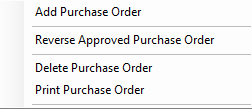
A number of actions are available by right mouse clicking on any PO in the list.
If the PO has not been paid.
If the PO has been paid.
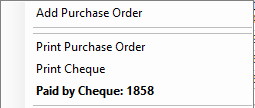
Click on Paid by Cheque to move to the Cheque tab with the cheque in focus.
?
PO Details
The middle section contains a list of all of the items relating to the PO highlighted above.
A number of actions are available by right mouse clicking on any PO in the list.
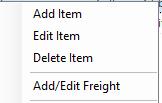
The above functions can only be performed on Open POs.
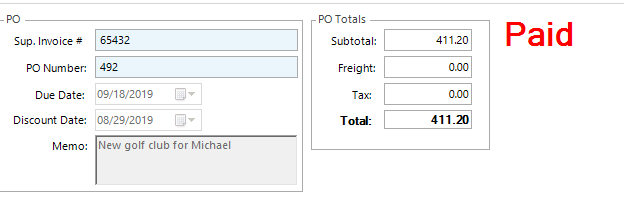
PO Summary Information
The bottom section contains summary information pertaining to the PO
Manage POs
There are 5 steps involved in processing POs
Step 1: Enter the PO
There are three ways to initiate the adding of a PO. First ensure that the supplier for which you are adding a PO is highlighted in the supplier list on the left.
- Using your keyboard, use the Ctrl-P combination
- Click on
 on the Tool Bar
 - Right mouse click anywhere in the list of POs and select Add PO.
Commence completion of the PO form.
.PNG)
- The PO number is auto incrementing but can be overwritten if you are using external PO forms.
- The memo is for reference purposes and will appear on the printed PO/Invoice.
Next click on Add Items to add line items to the PO.
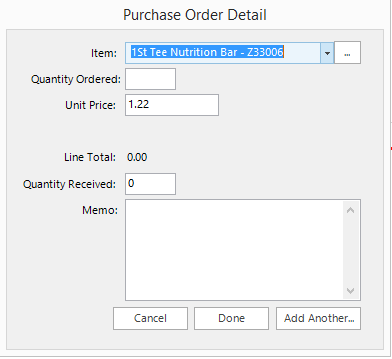
The form will automatically load witht he default inventory item which you have set for the supplier.
To select a different item to be purchased, enter the ItemID (SKU) or description of the item and the drop down list of items will filter down as you type ahead.
If the item has not yet been added to the Inventory Manager, you can click on the  button on the right of the item field, to launch the Inventory Manager and add the item.
Once the item has been selected, complete the form:
- Enter the quantity ordered
- Enter the unit price
- Do not enter tax
- If the shipment has been received, you can enter the quantity received
- Enter a memo, if applicable. The memo will be recorded in the general ledger as additional information relating to the purchase.
- To add additional line items to the PO, select Add Another. When complete select done.
Step 2: Issue the PO
To issue the PO, right mouse click on the PO line item in the top panel and select Issue PO.
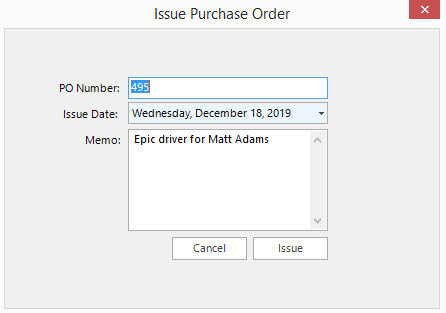
Step 3: Receive PO
To receive the items on the PO, right mouse click on the PO line item in the top panel and select Receive PO.
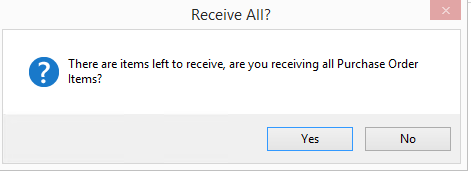
If you select Yes, all items in the PO will be received. If you select No, only items wtih received amounts will be received, the remaning items will be left with zero received.
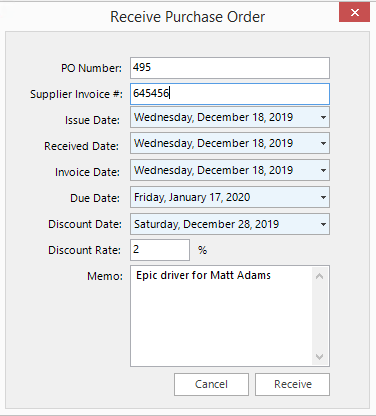
Complete the Receive Purcchase Order form. If you do not have the supplier invoice, leave the Supplier Invoice # blank and leave the other Invoice Date, Due Date, Discount Date and Discount Rate as is. You can complete the above information when you approve the supplier invoice.
Note: If you make a mistake on the quantities received, you can edit the individual line items in the purchae order details and edit the value for the quantity received.
Step 4: Add Freight
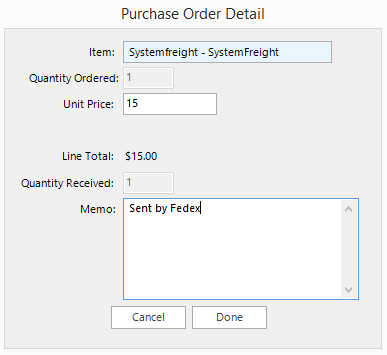
To add freight expense to a PO, right mouse click in the centre panel and select Add Freight. Simply complete the form to add freight.
Step 5: Approve the PO
Approving a PO, closes the PO and posts the transaction to the general ledger. Right clcik on the PO line item in the top panel and select Approve Purcahse Order. If you have not received all of the items in the PO, the following dialogue will appear.
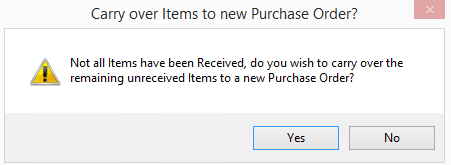
If you select Yes, a new PO will be created for the remianing unreceived items.
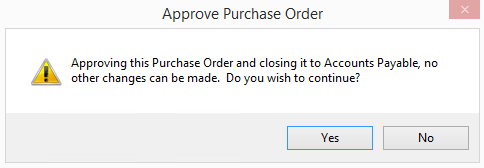
Lastly, complete the Approve Purchase Order form and then click Approve.
.PNG)
In addition approving a PO updates inventory values and quantities. A PO can also be approved using Bulk Approve Invoices, which feature is covered in another section of this reference guide.
Note: A PO can only be approved using Bulk Approve Invoices if all of the items have been received.
Correcting Mistakes
At any stage during the process of a PO, you can revert to the prior stage by right mouse clicking on the PO line item in the top panel and selecting the appropriate action. Reverting from an approved PO to the Received status will do a reversing journal entry.