Golf Course Manager
The Golf Course Manager is used to manage golf course and their schedules.
Contents
Interface
Launch the Golf Course Manager from the Golf Manager group.
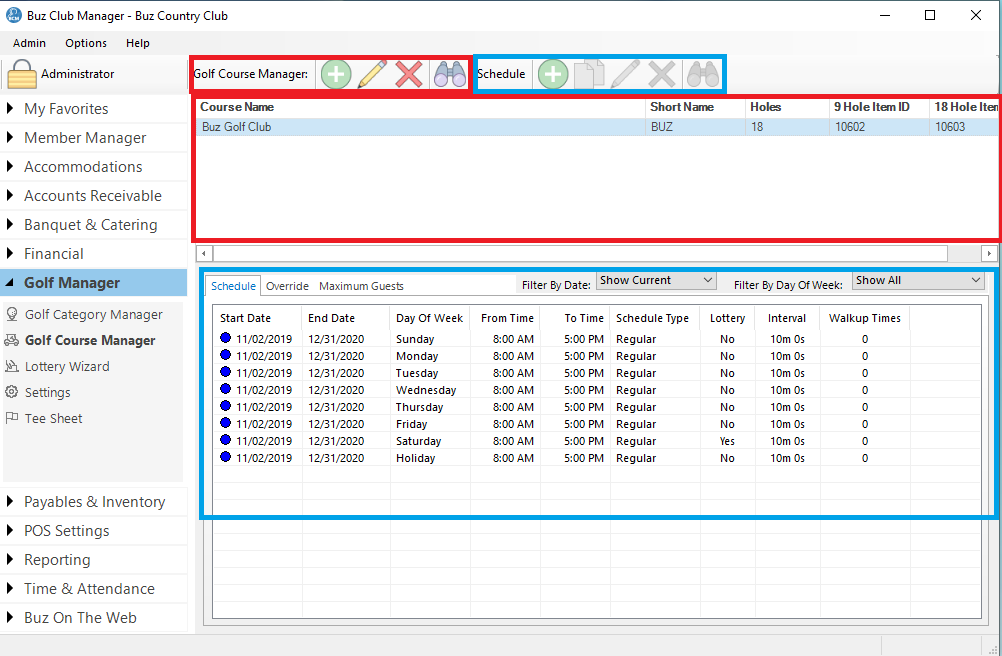
Tool Bar
The tool bar is comprised of two sections.
- Golf Course Manager (outlined in red)
- Add
- Edit
- Delete
- View
- Schedule (outlined in blue)
- Add
- Edit
- Delete
- View
Golf Course List (outlined in red)
The golf course list displays all of the golf courses for the club (each club can have an unlimited number of golf courses). The information displayed includes:
- Course Name
- Short Name (displayed on the tee sheet)
- Holes
- 9 Hole Item ID (default sales item for 9 hole gree fee)
- 18 Hole Item ID (default sales item fo 18 hole green fee)
Schedules
For the golf course which is selected in the Golf Course List, the lower panel has 3 tabs
- Schedule displays regular schedule for each day of the week
- Override displays date specific schedules which override the regular schedule for that date
- Maximum Guests displays the maximum number of guests which are allowed to play on specific days of the week
Manage Golf Courses
Add / Modify Golf Courses
To add a golf course, click on the + on the Tool Bar or right click anywhere in the Golf Course List.
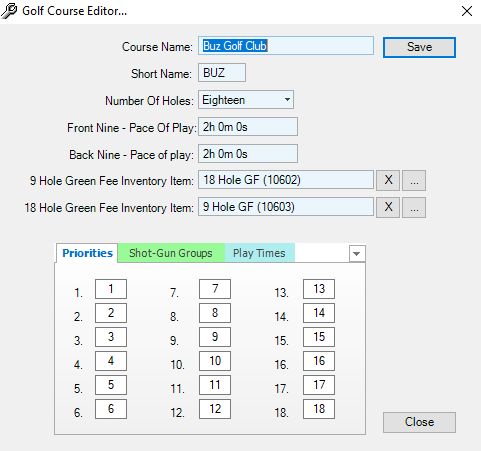
Complete the form.
There are three tabs at the bottom of the form.
Priorities
If your club assigns tee times by lottery, the priority for each hole will determine the order in which holes are assigned, if a lottery is performed for shotgun schedule.
Shot-Gun Groups
On this tab set the maximum number of groups which ca be assigned to each hole for a shotgun.
Play Times
On this tab, set the pace of play par for each hole. The pace of play par will be used to evaluate pace of play, if it is being tracked.
When done, click Save.
To modify a golf course, select the golf course in the Golf Course Listing and then click on the Edit button on the tool bar.
Manage Schedules
Add / Modify a Schedule
To add a schedule, click on the golf course in the Golf Course Listing and then click on the + on the tool bar.
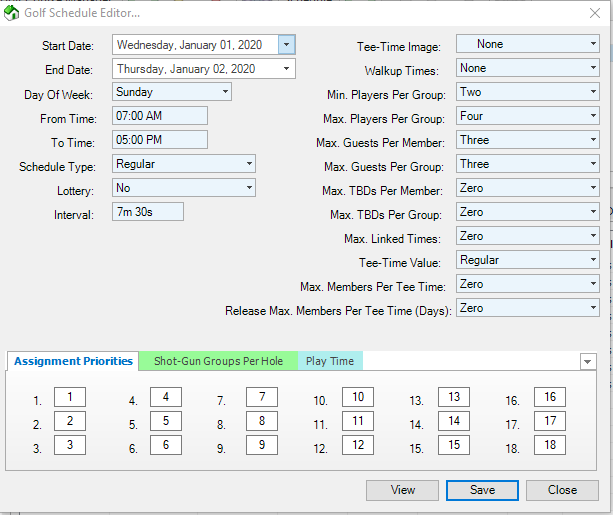
Complete the form as follows:
- Start Date: The effective start date for the schedule
- End Date: The effective end date for the schedule
- Day of the Week: The day of the week for which the schedule applies
- From Time: The start time for the schedule
- End Time: The end time for the schedule
- Schedule Type: Regular (first tee only), Cross-Over or Shot-Gun
- Lottery: If using the lottery (ballot) system, set to yes
- Interval: The interval between tee times in minutes and seconds
- Tee-Time Image: Select an image to appear in the left hand column o the tee sheet (this can be useful for denoting special conditions, such as ladies day or men's night)
- Walk-Up Times: Frequency of walk-up times (cannot be booked online and are reserved for golf shop only). 0 means none, 1 means all, 2 means every second time etc.
- Min. Players Per Group: Minimum players per group (enforced for online booking but can be overridden by golf shop)
- Max. Players per group: Maximum players per group (enforced for online booking but can be overridden by golf shop)
- Max. Guests Per Member: Maximum guests per member
- Max. Guests per Group: Maximum Guests per group
- Max. TBD Per Member: Maximum TBDs per member
- Max. TBD per Group: Maximum TBDs per group
- Max. Linked Times: Maximum number of linked times for lottery
- Tee-Time Value: Regular or Premium. Must be Premium for Max. Members Per Tee Time (below)
- Max. Members Per Tee Time: Must be zero unless using Max. Members Per Tee Time (above)
- Release Max. Members Per Tee Time (Days): Releases maximum members per tee time setting above 'x' days in advance.
- Assignment Priorities: You an override default settings for a shotgun
- Shot-Gun Groups per Hole: You can override default settings
- Play Time: You can override default settings
When finished, click Save.
To modify a schedule, click on the schedule in the list and then click on the Edit button on the Tool Bar, make the required changes and then click Save.
Copy a Schedule
Schedules are often identical or at least similar. To facilitate the creation of a new schedule, you can click on an existing schedule and then click on the Copy Schedule button on the Tool Bar. Make the necessary changes and then click Save.
Holidays
Many clubs have different schedules for holidays when they fall on a regular weekday. To accommodate this scenario, you can create a regular schedule for a day of the week called Holiday. This schedule will override the regular schedule a day of the week on days which are holidays.
Override
There are circumstances where you may require a custom schedule for a specific date. For example you may wish to run a double shotgun on a Sunday to accommodate a tournament in the afternoon. To accommodate date specific scheduling, create an override. Click on the Override tab and then click the + Override button on the Tool Bar. The process for completing the form is similar to creating a regular schedule. Complete the form and click Save.
Note: The order of priority for schedules is 1. Override, 2. Holidays and 3. Regular schedules
Maximum Guests
This feature is intended to establish a rule which will limit the number of guests which can play during Premium times. To set the maximum number of guests, click on the Maximum Guests tab and then click on the + Maximum Guests button on the Tool Bar.
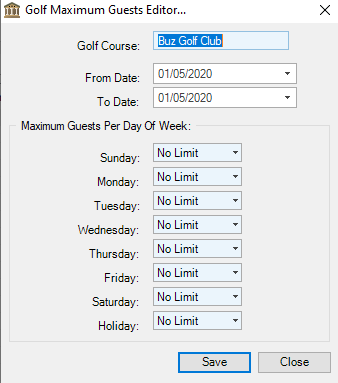
Complete the form by setting the date range and setting the limit for each day of the week and then click Save.