

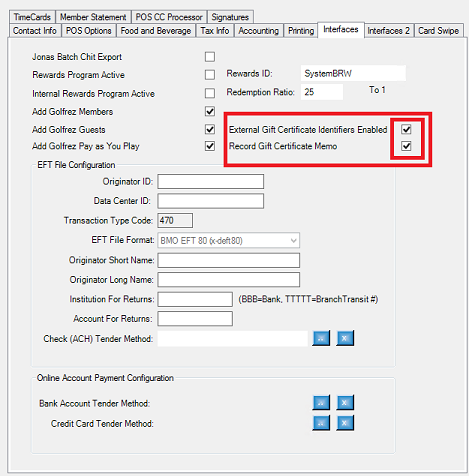
Note: If you use External GC Identifiers, enable the following options from POS Settings/System Settings/Interfaces tab:
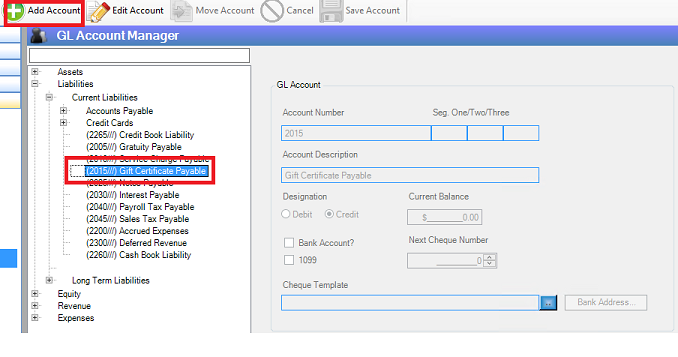
Step 1: Add a liability account for Gift Certificates (generally current liability as a payable):
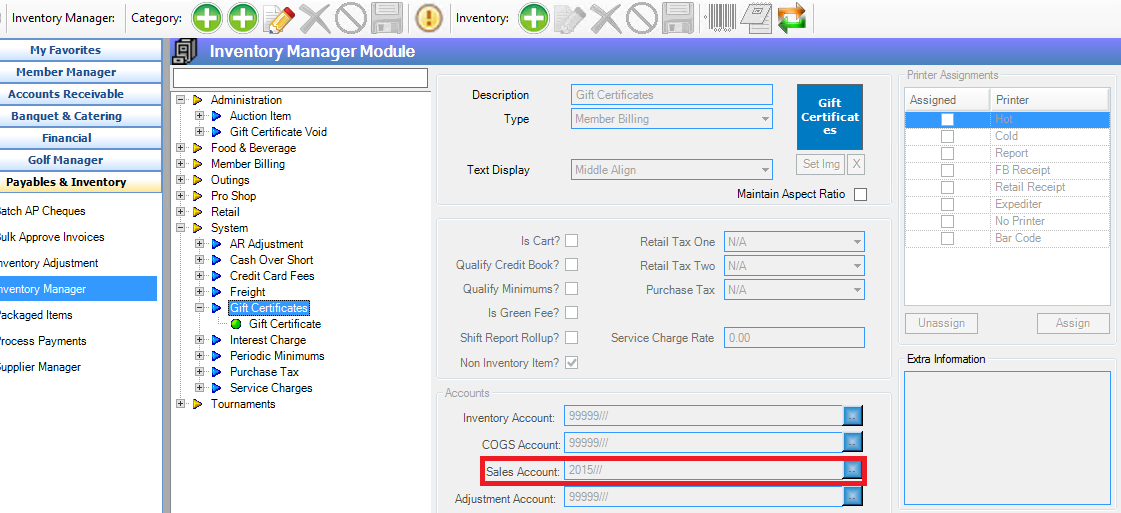
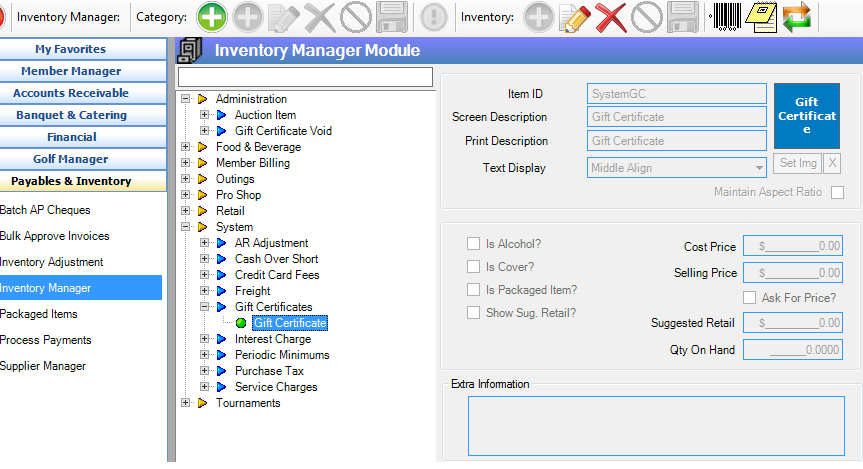
Step 2: Gift Certificate as an item in Inventory Manager under:
NOTE: There should be a Gift Certificate category and item under System category already. Use this however change the Sales Account to the Gift Certificate Liability Account added above.
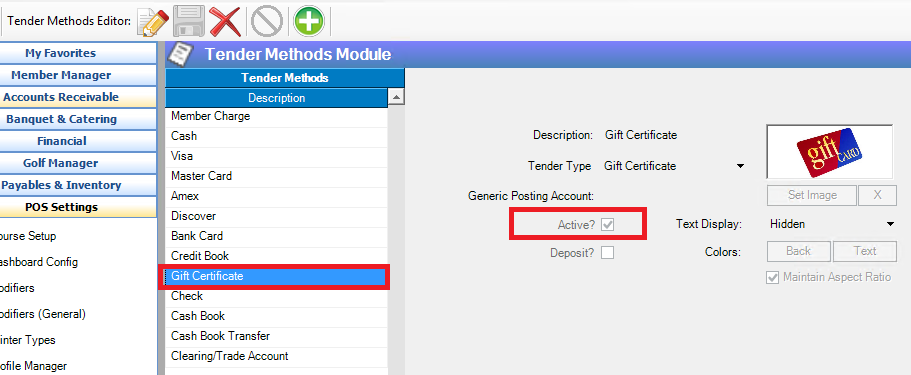
Step 3: Verify Gift Certificate is setup as a tender method:
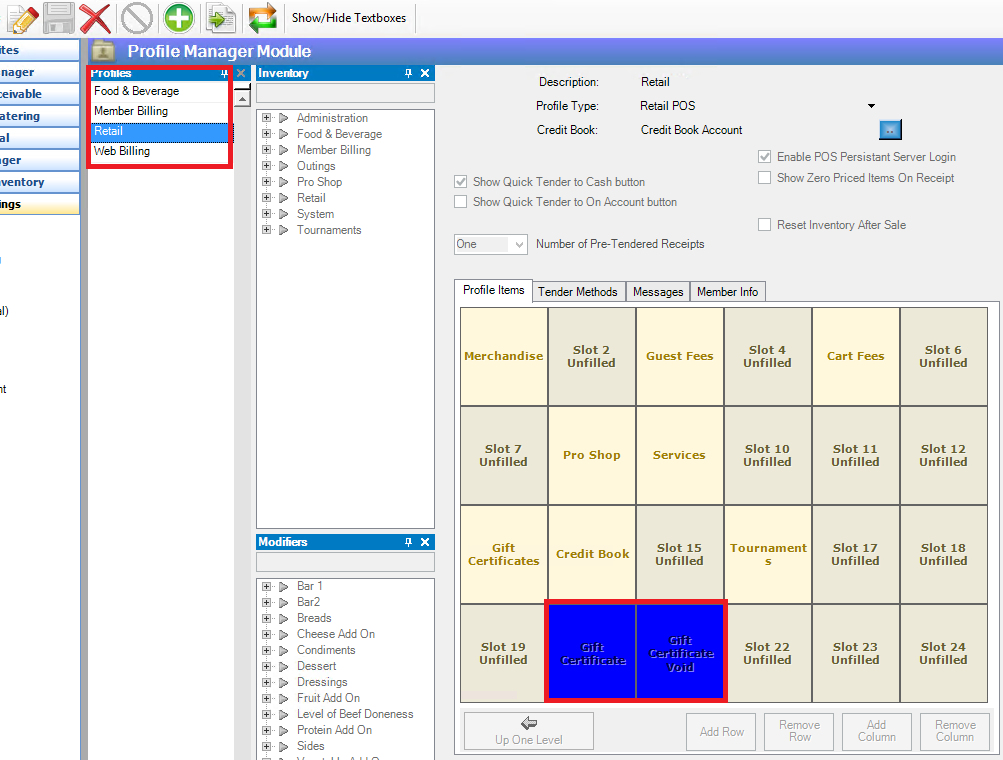
Step 4A: Add the Gift Certificate Item in inventory manager to the applicable POS menus:
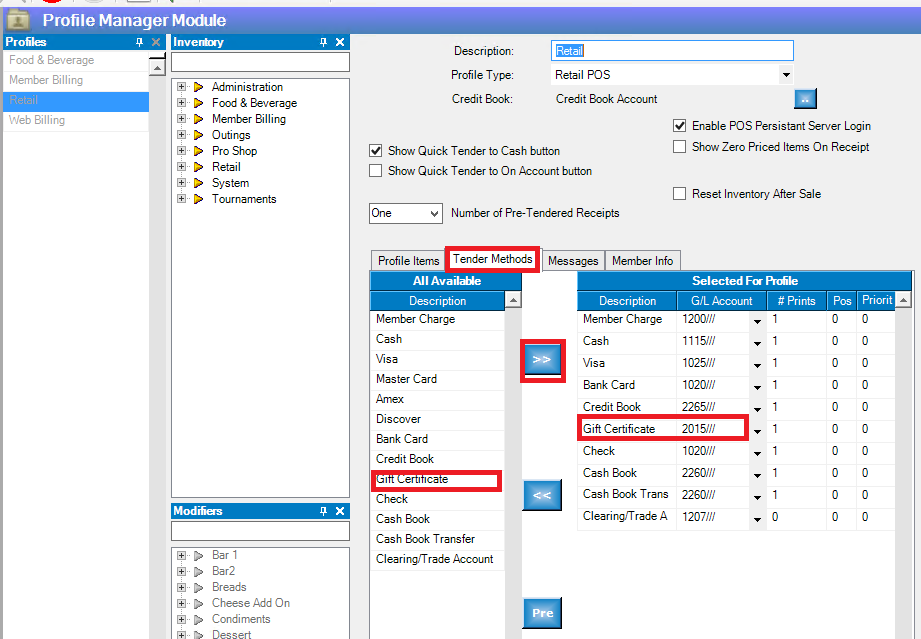
Step 4B: Add the Gift Certificate Tender Method to the POS Profile Tender Method adding the liability account as the GL Account:
Step 5. Processing a Gift Certificate
Sale of gift certificate from an applicable POS Profile:
Proceed as normal and select Gift Certificate in the POS, enter a face value and select OK:

Tender as you would normally to applicable tender method and select OK:

NOTE: If the External Gift Certificates Identifier and/or Record Gift Certificate Memo were enabled, you would see the following screen(s):


And when Gift Certificate is redeemed:
Redeeming Gift Certificate:
From POS, select merchandise or service purchased and then tender by selecting Gift Certificate icon and then select the original Gift Certificate sold from the list that appears:

And note the gift certificate icon is highlighted so press OK to tender.

Voiding a gift certificate:
NOTE: BCM does not allow the user to void an invoice which includes the sale of a gift certificate because at the time of the void, the gift certificate may be partially redeemed. The one exception is if the original sale was tendered “On Account”. The gift certificate can be canceled by making a payment on the member’s account through member manager using Gift Certificate as the tender method.
Next, add an inventory item with the same name:
Add the sub category or item to the applicable POS Setting/Profile:
From applicable POS, process a credit for the item entered above to void or correct a Gift Certificate:
And tender to the applicable method used when the gift certificate was sold and select OK:
(NOTE: This process is used for all tender methods except On Account).

Next, you will process an invoice to process the item used to void or correct the amount:

Tender to gift certificates and apply to the gift certificate to void or correct:

and select OK and OK.